Language
🇬🇧 English 🇸🇦 العربية

📖 BB Retail Documentation

Complete user guide for BB Retail Point of Sale system. Learn how to set up, configure, and use all features including ZATCA compliance, inventory management, and reporting.

← Back to BB Retail Get Started

Overview

BB Retail is a comprehensive bilingual (Arabic/English) Point of Sale system designed for businesses in Saudi Arabia and the GCC region. It provides complete ZATCA compliance, inventory management, customer tracking, and detailed reporting.

🌐 Bilingual Interface

Full Arabic and English support with RTL layout. Switch languages instantly.

📱 ZATCA Compliant

Full compliance with Saudi e-invoicing regulations including QR codes.

📊 Real-time Reports

Comprehensive sales, inventory, and financial reports with export options.

🖨️ Thermal Printing

Support for 58mm and 80mm thermal printers plus A4 invoices.

💰 Multi-Currency

Support for SAR, AED, USD, EUR, CAD and other currencies.

📅 Gregorian Calendar

All dates display in Gregorian format for consistency.

Installation

Download & Install

  1. Download BB Retail installer from our website
  2. Run BBRetail-Setup.exe as Administrator
  3. Follow the installation wizard
  4. Launch BB Retail from the desktop shortcut
Note: BB Retail requires .NET 8.0 Desktop Runtime. The installer will prompt you to install it if not present.

System Requirements

ComponentMinimumRecommended
Operating SystemWindows 10 (64-bit)Windows 11 (64-bit)
ProcessorIntel Core i3Intel Core i5
RAM4 GB8 GB
Storage500 MB1 GB
Display1366 x 7681920 x 1080

License Activation

BB Retail includes a 30-day free trial. To activate:

  1. Click "Activate License" in the sidebar
  2. Enter your license key
  3. Click "Activate"
Important: Each license key activates on one computer only. Contact support to transfer licenses.

Dashboard

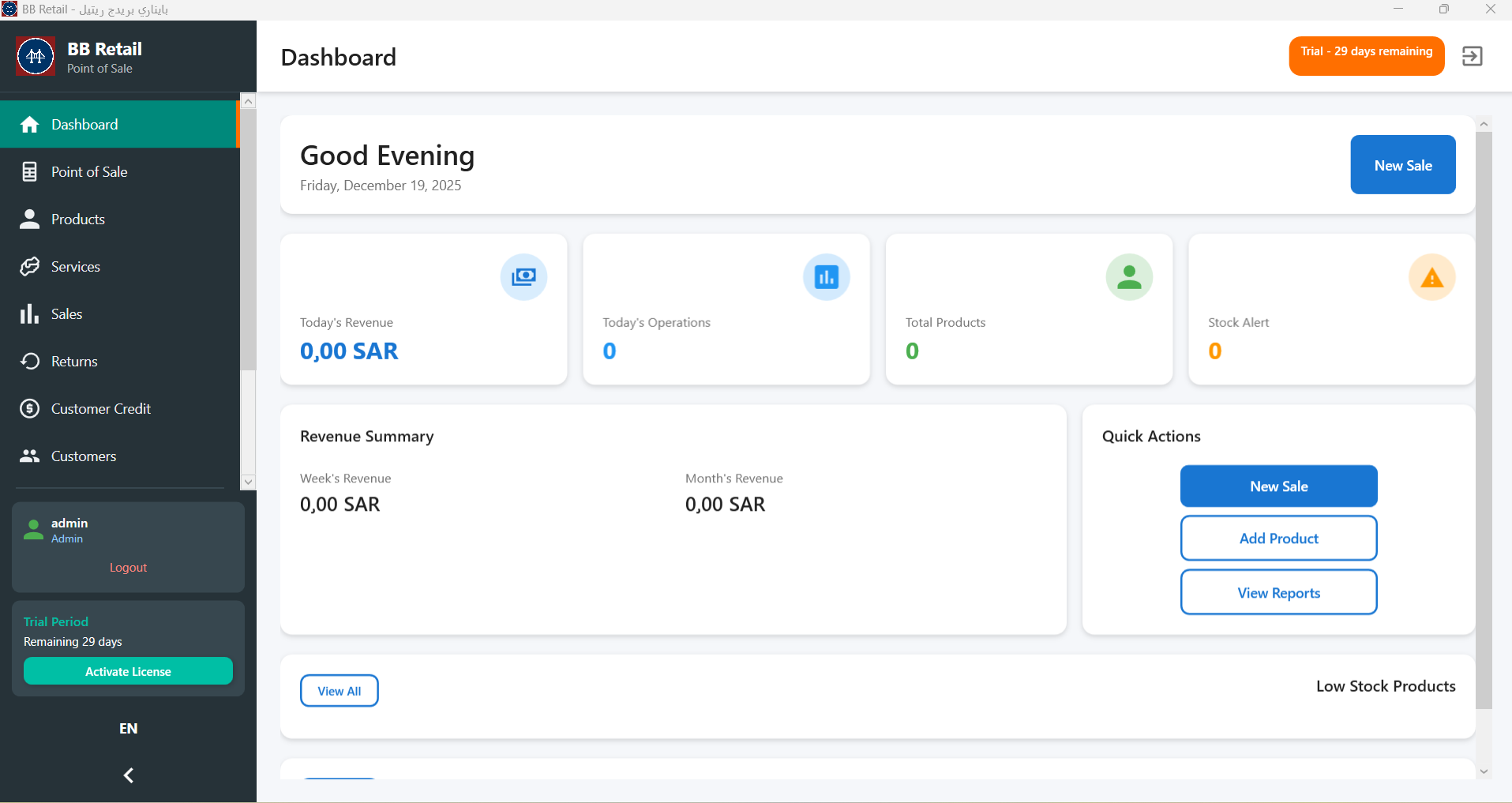
The dashboard provides real-time business metrics with a clean, professional grey color scheme.

Statistics Cards

  • Today's Revenue - Total sales for the current day
  • Transactions - Number of completed sales
  • Customers - Total registered customers
  • Average Transaction - Mean sale value
  • Low Stock Alerts - Products needing reorder
  • Cash in Drawer - Current cash balance

Today vs Yesterday

Compare revenue, transactions, items sold, and returns between today and yesterday.

Point of Sale

Processing a Sale

  1. Click "Point of Sale" from sidebar
  2. Add products by clicking or scanning barcodes
  3. Adjust quantities with +/- buttons
  4. Apply discounts if needed
  5. Select customer (optional)
  6. Choose payment method and complete

Payment Methods

  • Cash - With automatic change calculation
  • Card - Credit/Debit payments
  • Bank Transfer - Direct transfers
  • Split Payment - Multiple methods

Products & Services

Adding Products

  1. Go to Products
  2. Click "Add Product"
  3. Fill in: Name (English/Arabic), SKU/Barcode, Category, Prices, Stock, Tax Rate
  4. Click "Save"

Services

Services work like products but without inventory tracking. Ideal for consultations, repairs, etc.

CSV Import

Bulk import products from CSV files with automatic column mapping. Download sample files from the Sample Files section.

Inventory Management

Stock Tracking

Inventory updates automatically when sales are completed. Stock is deducted in real-time.

Low Stock Alerts

Set minimum stock levels per product. Alerts appear on dashboard when stock falls below threshold.

Stock Adjustments

Manually adjust for: receiving inventory, damaged goods, stock counts, internal transfers.

Customer Management

Customer Profiles

  • Name (English and Arabic)
  • Phone and Email
  • VAT Registration Number
  • Address details
  • Purchase history
  • Account balance

Customer Accounts

Enable store credit accounts for trusted customers. Track balances and process payments on account.

CSV Import

Bulk import customers from CSV files. Download sample files from the Sample Files section.

Sales Processing

Sale Types

  • Regular Sale - Standard POS transaction
  • Invoice Sale - Generates tax invoice
  • Quote - Price quotation (no stock impact)

Discounts

Apply at item or order level. Supports percentage and fixed amounts.

Invoice System

Creating Invoices

  1. Go to Invoices
  2. Click "Create Invoice"
  3. Select customer and add items
  4. Choose template
  5. Save as Draft or Send

Invoice Status

StatusEnglishArabic
DraftDraftمسودة
SentSentمُرسلة
PaidPaidمدفوعة
OverdueOverdueمتأخرة

Invoice Templates

📄 Tax Invoice A4

Full ZATCA-compliant tax invoice with QR code.

📄 Simplified Invoice

Compact A4 for transactions under SAR 1,000.

🧾 Receipt 80mm

Thermal receipt for 80mm printers.

🧾 Receipt 58mm

Compact receipt for 58mm printers.

📋 Quotation

Professional price quote template.

📋 Delivery Note

Shipping/delivery document.

Returns & Refunds

  1. Find original transaction in Sales
  2. Click "Return"
  3. Select items and quantities
  4. Choose refund method: Cash, Card, or Store Credit
  5. Process the return

Stock is automatically restored to inventory.

Reports Overview

Comprehensive reporting with language-aware display. All reports show correct names based on current language. Currency displays based on your regional settings.

Sales Reports

  • Daily Sales - Today's transactions breakdown
  • Monthly Sales - Month-over-month comparison
  • Top Selling Products - Best performers by revenue
  • Top Categories - Category performance

Inventory Reports

  • Low Stock - Products needing reorder
  • Stock Value - Total inventory valuation (cost and retail)
  • Out of Stock - Products with zero quantity

Financial Reports

  • Revenue & Profit - Income and margin analysis
  • Top Customers - Highest spending customers
  • Receivables - Outstanding balances and debtors

Tax Reports

🧾 Tax Report - Complete VAT/tax collection summary including:
  • Total tax collected
  • Pre-tax sales amount
  • Effective tax rate percentage
  • Number of taxable invoices
  • Average tax per invoice
  • Detailed invoice breakdown with tax amounts

Accounting Reports

📊 Profit & Loss Statement - Comprehensive P&L report including:
  • Revenue Section: Gross sales, discounts, returns, net revenue
  • Cost Section: Total cost of goods sold
  • Profit Summary: Gross profit, net profit, profit margin %

Customer Reports

  • Customer List - All registered customers
  • Customer Balances - Outstanding receivables by customer
  • Purchase History - Customer transaction history

Export Options

All reports can be exported to PDF, Excel (CSV), or printed directly. Reports respect your regional settings for currency display.

User Roles & Permissions

BB Retail uses a role-based access control system with three user levels. Each role has specific permissions designed for their job function.

👑 Administrator (مدير النظام)

Full system access including settings, users, backup, and all operations. Intended for business owners and IT administrators.

  • Complete access to all features
  • Manage users, terminals, and system settings
  • View cost prices and profit margins
  • Delete products, customers, and invoices
  • Backup and restore data
  • Manage license activation
  • Void completed sales
  • Adjust shift cash discrepancies

👔 Manager (مدير)

Day-to-day operations management. Can manage products, customers, and inventory but cannot access system settings or delete critical data.

  • Full POS access with unlimited discounts
  • Add and edit products (cannot delete)
  • View cost prices and profit margins
  • Process returns and refunds
  • View all reports including financial
  • Manage inventory and stock adjustments
  • View all shifts and force close shifts
  • Create backups (cannot restore)

🛒 Cashier (كاشير)

POS-focused role for front-line sales staff. Limited access to protect sensitive business data.

  • Process sales and hold transactions
  • Apply discounts (within configured limits)
  • View products and services (no cost prices)
  • Add new customers
  • Print receipts
  • Open/close own shift
  • View X-Report (mid-shift)
  • No access to reports, settings, or inventory

Permissions Matrix

Detailed breakdown of permissions by role:

POS & Sales

PermissionAdminManagerCashier
Process Sales
Apply Discount✓ (limited)
Unlimited Discount
Void Sale
Process Returns
Void Completed Sale

Products & Inventory

PermissionAdminManagerCashier
View Products
View Cost Prices
Add/Edit Products
Delete Products
Adjust Stock
Import/Export

Reports & Financial

PermissionAdminManagerCashier
View Reports
View Financial Reports
View Profit Data
Export Reports

Settings & Administration

PermissionAdminManagerCashier
View Settings
Edit Settings
Manage Users
Create Backup
Restore Backup
Manage License

ZATCA Compliance

🇸🇦 Saudi E-Invoicing
BB Retail is fully compliant with ZATCA electronic invoicing requirements for Phase 1 and Phase 2.

Setup

  1. Go to Settings → ZATCA
  2. Enter VAT Registration Number
  3. Configure Commercial Registration
  4. Set business address
  5. Enable QR code generation

QR Code Contents

  • Seller name
  • VAT registration number
  • Invoice timestamp
  • Total amount (including VAT)
  • VAT amount

Regional Settings

Currency

Supported: SAR, AED, USD, EUR, CAD. Currency displays based on your regional settings configuration.

Language & Localization

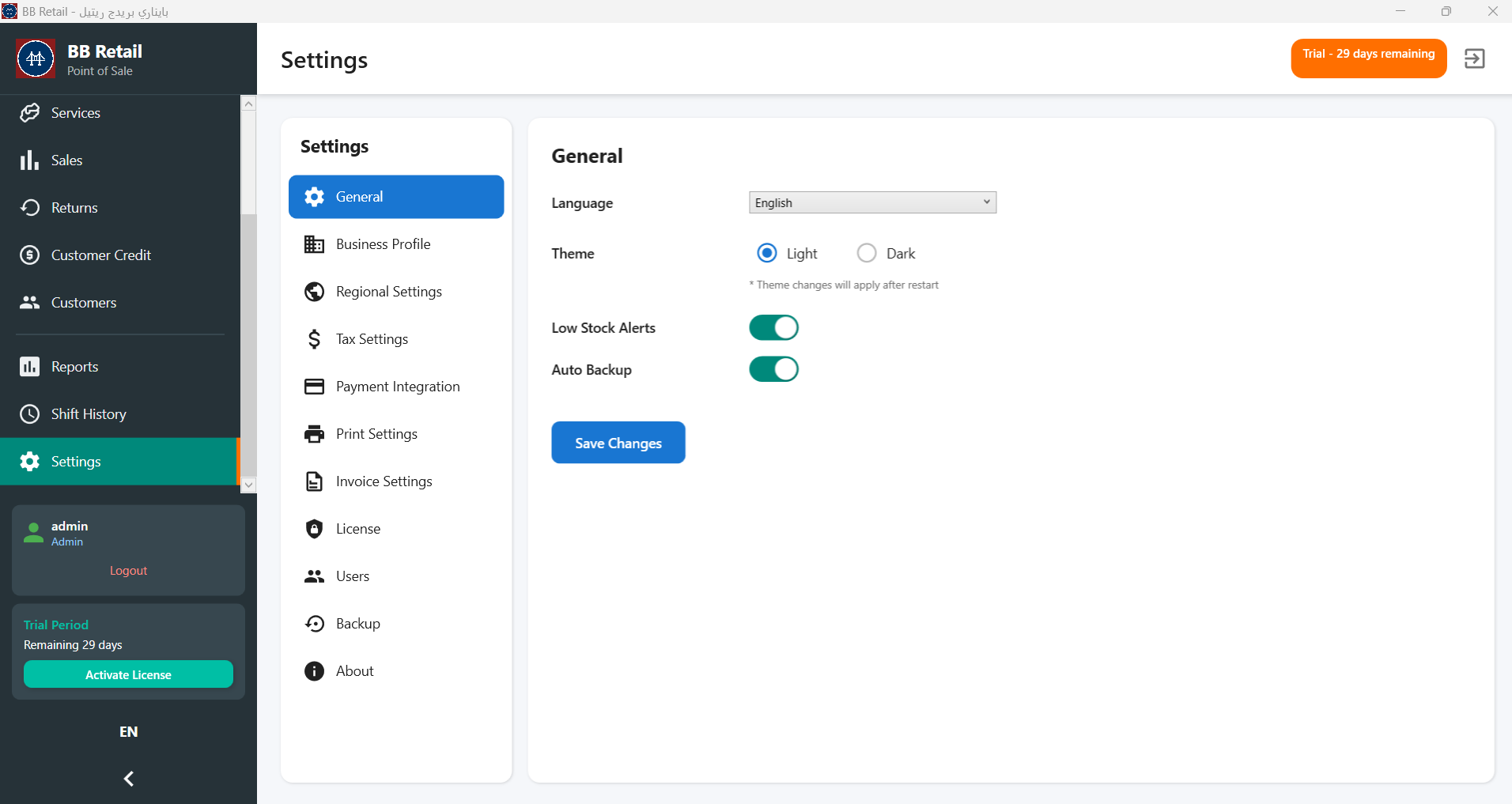
Switch between English and Arabic from the sidebar:

  • Full RTL support for Arabic
  • Bilingual product names
  • Localized status badges
  • Walk-in Customer → عميل عابر

Date Format

All dates in Gregorian calendar (YYYY/MM/DD) in both languages.

Printing Setup

Thermal Printers

Supports ESC/POS: Epson TM, Star TSP, generic 58mm/80mm USB printers.

Configuration

  1. Install printer drivers
  2. Go to Settings → Printing
  3. Select receipt printer
  4. Choose paper size (58mm or 80mm)
  5. Print test receipt

Backup & Restore

Create Backup

  1. Go to Settings → Backup
  2. Click "Create Backup"
  3. Choose save location

Restore

  1. Go to Settings → Backup
  2. Click "Restore"
  3. Select backup file
Warning: Restoring replaces all current data. Backup first!

Sample Files

Download sample CSV files to help you get started with importing data into BB Retail. These templates show the correct format and required columns.

📦 Product Import Templates

📄

Products - English Template

Sample product data with English names, SKUs, categories, prices, and stock levels.

⬇️ Download CSV
📄

Products - Arabic Template

Sample product data with Arabic names for bilingual product setup.

⬇️ Download CSV

👥 Customer Import Templates

📄

Customers - English Template

Sample customer data with names, contact info, and VAT numbers.

⬇️ Download CSV
📄

Customers - Arabic Template

Sample customer data with Arabic names for bilingual customer records.

⬇️ Download CSV
💡 Import Tips:
  • Open CSV files in Excel or Google Sheets to edit
  • Keep the header row intact - column names must match exactly
  • Save as CSV (UTF-8) to preserve Arabic characters
  • Use both English and Arabic templates for complete bilingual data

Support

Need help?

Thank you for choosing BB Retail!
We're committed to helping your business succeed.
Sarah

Chat with Sarah

BinaryBridge Inc.
Sarah
Hi! Looking at BB Retail POS? I can help with features, ZATCA compliance, or pricing.
Powered by BinaryBridge AI